 Blog
Blog Links
Links Contact
 About
AboutRevisiting the Trinity Desktop Environment
Publish Date: 2025-12-19
The Trinity Desktop Environment (TDE) is one of my favorite ones out there. I've written on it before, but would like to go over a few other things I've picked up along the way that make it especially nice to use since it can be a little rough around the edges.
I'm not using it as much these days since I've been working toward reducing the amount of time I spend tinkering on my computer, so I have it installed on an old desktop PC running Devuan I boot up every once in awhile.
You can use the below list to skip to parts you might find relevant in this post since it's gonna be a long one. Some of these I've written on before already, but figured it wouldn't hurt to bring back up.
- Where and where not to use TDE
- Why not use Plasma or something else?
- How to fix display blanking DPMS timeout
- Get a better audio mixer
- DBUS compatible notification daemon for TDE
- Exposing network file-shares to the local file-system with GVFS
- Keyring requesting password after login
- qt5 style plugin packages missing in Debian Trixie 13
Where and where not to use TDE
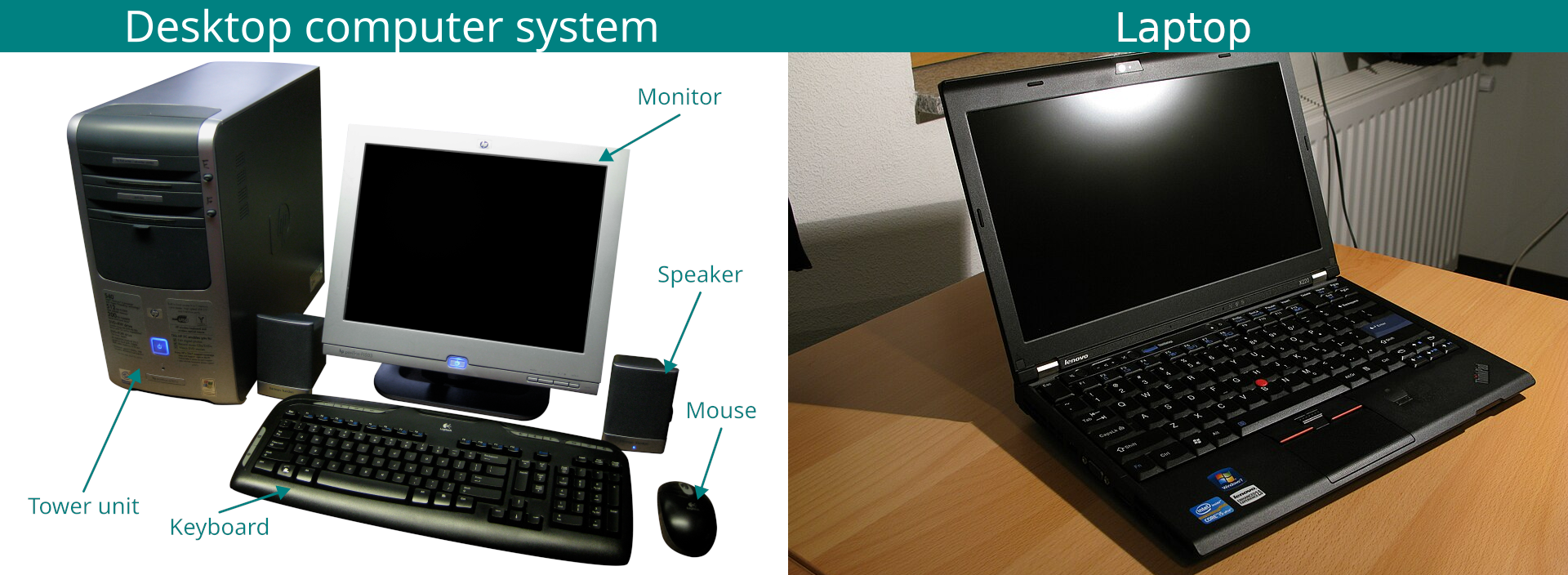
Like I said, TDE can be pretty rough around the edges. It comes from an era of computing that was done almost exclusively on Desktop Computer's, so laptops are really not an ideal choice of device here. It can be done, but the desktop focused paradigm the environment was made for just isn't geared for a mobile workflow where you might connect and disconnect external displays, docking stations, audio devices, etc. It needs a static setting where everything is setup once and for all.
If you're the sort that keeps changing the display orientation, resolution, and DPI scaling, then you should use the Plasma desktop or something else. You have to remember, this environment is old.
Why not use Plasma or something else?
Good question! I don't have a very satisfying answer, but it might mean something to someone out there...
Are you the kind of person that values a stable environment where you can expect things to remain relatively unchanged? Does it cause you distress or frustration to sign into your computer only to find that everything has been re-positioned, altered, or broken after an update? And worse yet, functionality you relied on was removed because the developers didn't have a "use case" for it within the testing of their own vacuum chambers.
Well my friend, TDE isn't going anywhere anytime soon - that is so long the project doesn't unexpectedly shutdown - so hop in cause we're going nowhere fast; It's the same old KDE3 we all knew and love from 20+ years ago, and not a lick of it has changed! Now isn't that simply wonderful?
I'm being a little facetious here, but I'm impressed that it's managed to hold up for as long as it has. In a time where major desktop environments are essentially bootstrapped web browser tech ramming updates down your throat every day and probably soon to be integrated chat bots, turning away from X11 support, re-writing their code base in a different language for grins, core apps being containerized and thus bloated, along with all the security theatrics chewing its way thru everything, it's kind of a breath of fresh-ish air honestly.
I've been using TDE on the Devuan distribution and nothing really ever gets in my way except for those rough edges, which I'll write about here soon. I never see reminders to "reboot your computer to install updates," or to connect my account to some online service, or any sort of network communication aside from the typical things like DNS and NTP. Shoot, TDE doesn't even come pre-installed with a notification system!
The rest of this post I'll share my finds and fixes to work out those rough edges, making TDE a practical desktop for those of you weary and tired of the modern age of computing.
How to fix display blanking DPMS timeouts
Have you ever noticed that the display will shut itself off after 15 minutes of inactivity? You'd think it was either coming from the power manager or the screensaver, but actually it's coming from X!
To fix this, all you need to do is put the following into an ".xinitrc" file in your home directory.
                  xset -dpms


                  xset s off
The next time you sign in, it'll run those commands which disables DPMS and screen blanking.
Get a better audio mixer
The default kmixer isn't very useful since it doesn't provide functionality to adjust individual application volume levels and switching audio devices. I recommend installing pavucontrol-qt for a better audio mixer, then add it as a launcher button to your panel for quick access.
[Advanced]
If you're like me and switch between audio devices frequently, it's nice to have pavucontrol open to the "Output" tab first instead of the "Playback" tab. With the following script, you can achieve just that. You'll need to install xdotool for this to work:
#!/bin/bash
winpid=$(xdotool getwindowpid `xdotool search --name 'Volume Control'`)
if [[ -n "$winpid" ]]; then
kill -9 "$winpid"
pavucontrol-qt &
sleep 1 && xdotool getactivewindow key alt+o
else
pavucontrol-qt &
sleep 1 && xdotool getactivewindow key alt+o
fi
DBUS compatible notification daemon for TDE
This might depend on the distribution TDE supports, but I've noticed that it tends to not include a notification daemon with the default installation. Fortunately this can be easily resolved by installing kdbusnotification-trinity and libnotify-bin.
You'll want to start this up on login by running notification-daemon-tde from either a startup script or an autostart .desktop file. If you want to use a .desktop file as the autostart method, then create it in "~/.trinity/Autostart/" and append the following to it:
[Desktop Entry]
Encoding=UTF-8
Type=Application
Name=noficiation-daemon-tde
Comment=notification daemon
Exec=notification-daemon-tde
Log out then log back in. You can test with the notify-send command in a console to verify it works.
I haven't yet been successful in modifying the style or geometry of the notification system, so if anyone knows how then by all means share with me!
Exposing network file-shares to the local file-system with GVFS
The Konqueror file manager has the built-in capability of mounting network file shares, namely SAMBA, but it mounts by a protocol exclusive to the file manager meaning that you can't open files from it without having to copy them to the local file system first since there isn't a direct path to said files to the file share. While Konqueror can see the files, your other applications won't.
I recommend using GVFS and Gigolo for handling remote file share mounts. You'll want to install the following:
apt install gigolo gvfs-daemons gvfs-backends gvfs-fuse gvfs-common
You’ll need to reboot after the install is complete.
Next up, you’ll need to configure Gigolo to connect to your network file share, which is pretty straight forward; I’m assuming that you should already know how to do this, so I’m not going to walk you thru that part, however there are a few settings I recommend.
Open Gigolo, click “edit” in the menu bar > preferences > Interface tab. Check “Start minimized in the Notification area,” this way it doesn’t start up with a window when logging in. Remove the checked option for “Show auto-connect error messages,” so that you’re not bombarded with connection error popups if your computer or file server should happen to fall off the network.
You’ll also want to make sure that Giglo starts up when logging in. You can do this by adding the following contents to a .desktop file in your "~/.trinity/Autostart/" directory.
[Desktop Entry]
Encoding=UTF-8
Type=Application
Name=Gigolo
Comment=GVFS file mounter
Exec=gigolo
Once you have your network mount setup and connected in Gigolo, open Konqueror and navigate to the "/run/user/1000/gvfs/" directory. You should see the mounted share from here. You can bookmark it in Konqueror for quick access.
And that’s all there is to it! The next time you log back in, Gigolo should auto-mount the network share if it’s present, and you can simply click on your bookmark in Konqueror to access it.
Keyring requesting password after login
If you see the following dreaded mandatory popup after logging in:
Authentication Required: An application wants access to the Default Keyring but it is locked
This is the GNOME keyring manager known as Seahorse which is used by most applications that require a keyring service to store credentials. Alternatively, there's the KDE wallet which is a keyring service too which is no better in this situation; there's also the TDE wallet which does come pre-installed, but no modern application is ever going to work with it since it doesn't support DBUS on the back-end to facilitate keyring management. By the way, you really should only have one instead of both.
If you're wondering where it came from or how it got installed to your system, then it was likely installed as a dependency for some other package you installed.
The popups are certainly annoying and prevent you from using the desktop, so I suggest just removing the password requirement from it altogether because it'll never integrate with the TDE display server when logging into your system. It's the only way to fix it.
You can open the keyring by searching for seahorse or kdewallet, depending on which one you have on your system, then go into the settings and change the default keyring password to a blank password. The next time you login, you shouldn't be badgered by it anymore.
Some of you might cry "security vulnerability!" like a noisy klaxon alarm, but if you take a step back for a minute and realized that if you got malware on your system, that silly old keyring isn't going to save you one bit. It's like trying to prevent nuclear armageddon in just your own backyard; in other words, it's not going to work. Hijacking the DBUS API interface isn't out of the realm of possibility either. This whole keyring and DBUS implementation business is a farce.
qt5-style-plugin packages missing in Debian Trixie 13
If you need the qt5 styles for plastique, cde, cleanlooks, etc in qt5ct, you'll have to download the deb package from an older version of Debian because they're no longer included in Debian 13. Dunno why.
If you have a Debian 12 system, you can download the packages with the following command (replace <name of style> with the name of the package style you want):
apt download qt5-style-plugin-<name of style>
Alternatively, you can just download the package from the archive here: https://packages.debian.org/bookworm/libs/qt5-style-plugins
Click the one you want in the "dep" list, for example qt5-style-plugin-plastique, then scroll down to the bottom of the page and select your CPU architecture. The page will switch over to the download page where you're provided a list of mirrors to select from. Click either mirror and the .deb package will download to your system.
Extract the contents of the deb package, which will contain the data.tar.xz archive. Again, extract the data.tar.xz archive and copy the library file from its following directory into the corresponding system directory:
cp qt5-style-plugin-plastique_5.0.0+git23.g335dbec-4+b7_amd64/usr/lib/x86_64-linux-gnu/qt5/plugins/styles/libqplastiquestyle.so /usr/lib/x86_64-linux-gnu/qt5/plugins/styles/
If it doesn't take immediate effect, then reboot the system and re-open qt5ct to verify it picks up the style plugin.
Thanks for reading my blog!
[Back to top]
Comments: