 Blog
Blog Links
Links Contact
 About
AboutGuide to a modern and practical desktop with KDE Plasma 6 (X11 only)
Publish Date: 2026-05-21
I've found a pretty decent desktop workflow on KDE Plasma 6 which is highlighted in the following screenshots. This combines touchpad gestures with key macros, a global menu bar with title bar integration, and a few simple cosmetic tweaks that redefine the Plasma desktop environment into something modern and practical.
I'm writing this while running the Debian 13 operating system, so package naming and file system locations detailed in this guide will conform only to Debian. If you're running on a different distribution, then you might have to figure some of this out for yourself because I can't spend the time accounting for everything out there; I'll make an exception for Devuan though.
Additionally, I'm only running X11 here instead of the Wayland display server. The reason for that is because the global menu bar doesn't really work outside of X and you can't configure custom touchpad gestures on it either (or at least easily...) The global menu bar will work for Qt applications outside of X, but not for GTK applications. Perhaps some day it'll get fixed, but in the meantime, stay on the X11 session.
To begin, you'll need to install the following packages:
sudo apt install appmenu-gtk3-module appmenu-gtk-module-common appmenu-registrar
And for some of the cosmetic stuff, which is optional:
sudo apt install kwin-decoration-oxygen kde-style-oxygen-qt6 kde-style-oxygen-qt5 liboxygenstyle5-6 liboxygenstyle6-6 liboxygenstyleconfig5-6 liboxygenstyleconfig6-6
I'm not so fond of the default Breeze style and prefer the Oxygen style for application widgets. The default Breeze style is a little too flat and doesn't make good use of shading / colors, causing it to appear garish; also, it doesn't have scroll bar buttons. As for the Plasma shell itself (excluding the Qt widget theme), the Breeze style is actually alright.
The default Noto sans font is also not the greatest choice, appearing too thin and lite. I recommend the [Fira Mono] and [Fira Sans] fonts.
The default Breeze icon theme is okay, so I don't recommend bothering with it unless you can't stand it. It's by far the most complete compared to just about anything else out there. The old Krystal remix theme isn't half bad if you're aiming for a retro look, but despite being comprehensive, even it isn't as complete as the Breeze icons so I suggest just leaving it be.
For custom touchpad gestures, there are a few things you'll need to install first before I get to the configuration steps. There are two parts to this, a back-end service and a front-end graphical application. The back-end service is pretty simple to install, but the graphical front end will unfortunately require flatpak.
Step 1: Download the ".deb" package for touchegg from [here].
Step 2: Install the package from either opening it in the KDE Discover software center or with dpkg in a console. I recommend using dpkg in a console so that you can see any possible package conflicts or errors when attempting to install.
sudo dpkg -i touchegg_2.0.18_amd64.deb
| Note for Devuan users | ||
| The deb package provided by the touchegg project only setups a SystemD unit file, which is useless on SysV init based systems (i.e. Devuan.) | ||
| You'll need to create a custom SysV init script to auto-start the touchegg daemon process on boot up. | ||
| Apply the following to a file in /etc/init.d/ | ||
|
||
|
Then use update-rc.d to enable the service:
|
||
| There's a client that should auto-start on the user sign in as well. This might be handled automatically since there's an XDG autostart script setup in /etc/xdg/autostart/touchegg.desktop. |
Step 3: Install flatpak and enable the flathub repository (optionally, include flatpak integration with KDE Discover too so that you can update applications from a single location):
                  sudo apt install flatpak plasma-discover-backend-flatpak


                  flatpak remote-add --if-not-exists flathub https://dl.flathub.org/repo/flathub.flatpakrepo
Step 4: You can install touche either from the KDE Discover software center or directly from a console with the following command:
flatpak install flathub com.github.joseexposito.touche
After all this is completed, reboot your system!
Configuration
Plasma Panels:
Now it's time to set some things up. First off let's install a few Plasma panel plugins. Right click on a panel bar and select "Add or Manage Widgets..."
From the Widgets view, click on "Get New..." and select "Download New Plasma Widgets."
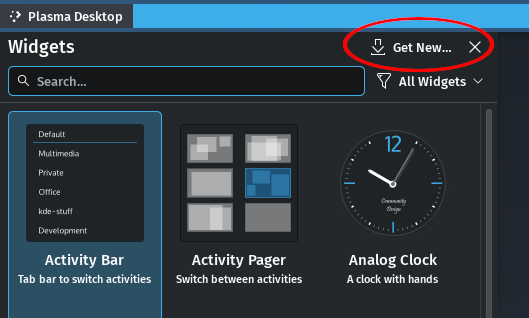
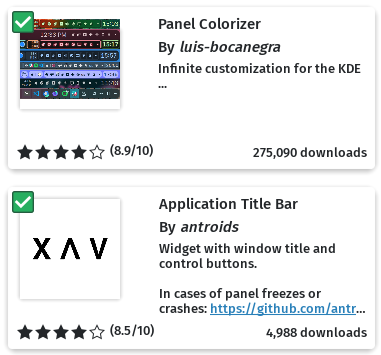
Search for and install "Panel Colorizer" and "Application Title Bar." Once installed, you can close out the Widgets view.
Now you can begin setting up the panel bars. The following screenshot details my panel configuration. Add each panel widget item as show in the below screenshot.
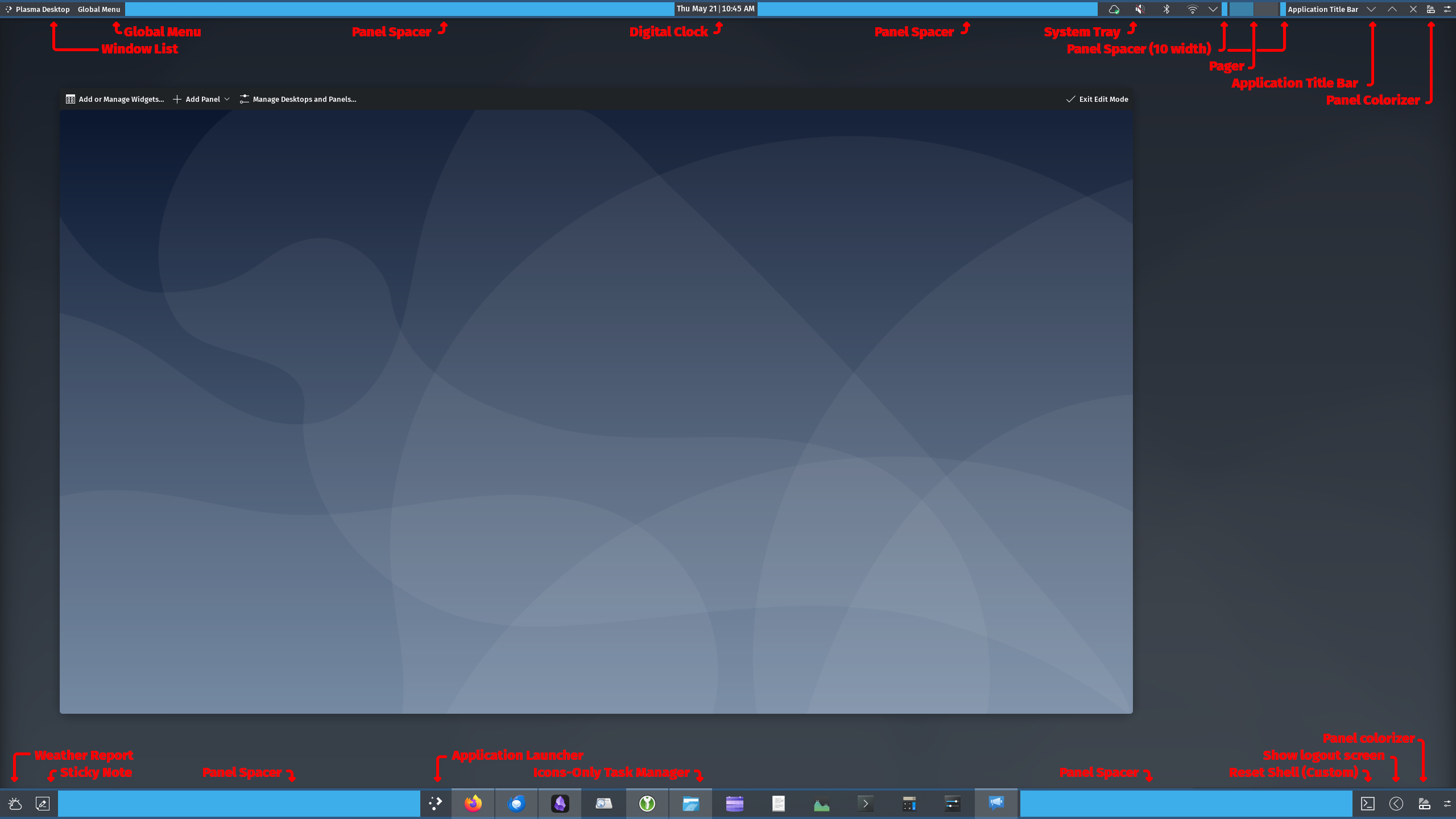
Click image for larger size
To add the top global menu bar, you can select "Add panel" followed by "Application Menu Bar."

You'll want the panel colorizer widget visible only in panel edit mode. From the panel configuration overview, right click on the "Panel colorizer widget" and select "Hide widget (visible in panel Edit Mode)."
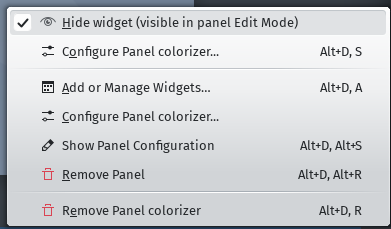
Reset Shell panel launcher:
I recommend having this accessible because sometimes the global menu bar will bug out and stop working. When you click the reset shell panel launcher button, it'll reset the Plasma shell without losing your session and restore any lost functionality.
The "Reset Shell (Custom)" launcher can be added after creating it in the system Menu Editor. To do this, launch the Menu Editor application. From the Menu Editor, click the "New Item" button and name it "Reset Shell."

Append systemctl in the "Program" box, and --user restart plasma-plasmashell.service in the "Command-line arguments" box. Don't forget to give it an icon too!
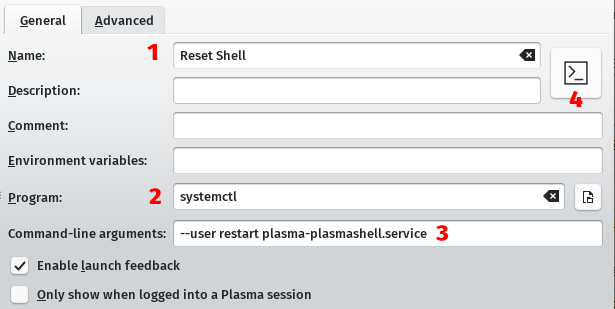
Click "Save" to apply the new item then search for it in the application menu. You can drag and drop it to the panel bar.
Application Title Bar:
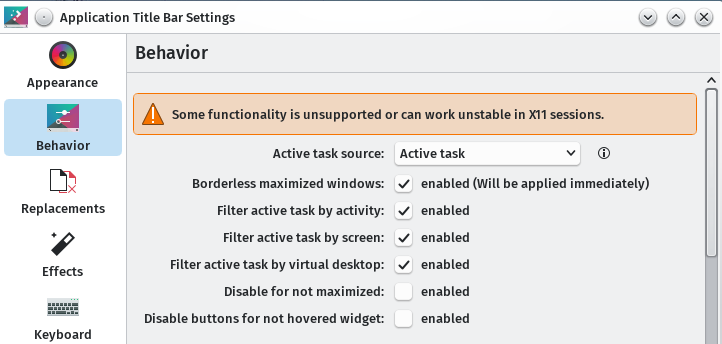
You can configure the application title bar widget by right clicking on it. The default configuration will show the title of the application window, which is nice but a little redundant. Really all we want is the application window controls, so to set that up you'll need to make the following edits.
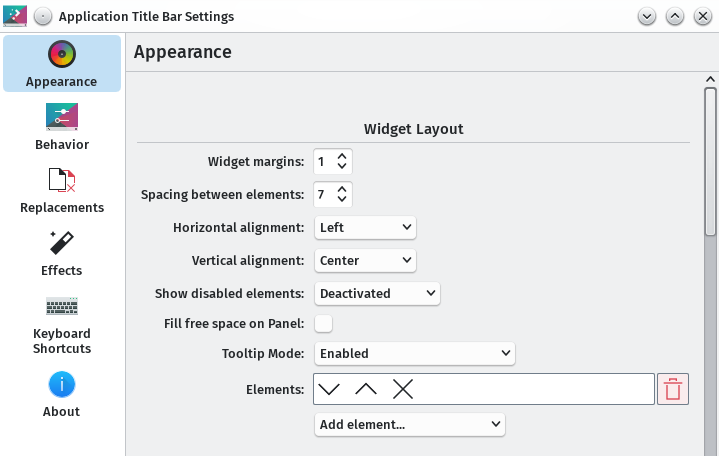
You can drag and drop the elements into the trash can
Make sure the "Borderless maximized windows" checkbox is enabled. I suggest disabling the "Mouse area drag," "Mouse area click," and "Mouse area wheel."
Panel colorizer:
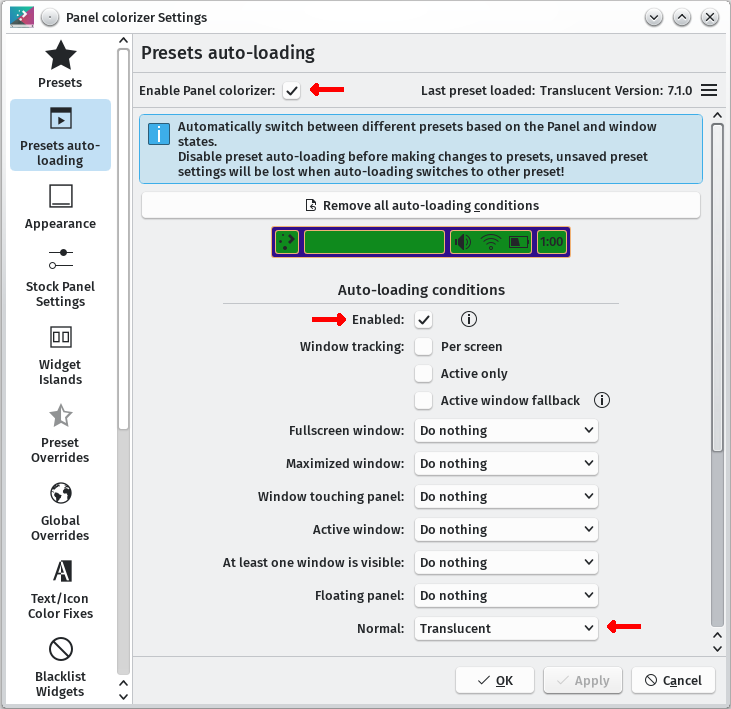
Albeit optional, the panel colorizer has an option for translucency that appears a lot better than the default translucency option built in to the Plasma panel. You'll need to add the widget to both top and bottom panels since it only modifies each panel.
Right click either panel then select "Configure Panel Colorizer..." Click on "Presets auto-loading," enable panel colorizer, enable auto-loading conditions, and set the "Normal" condition for "Translucent."
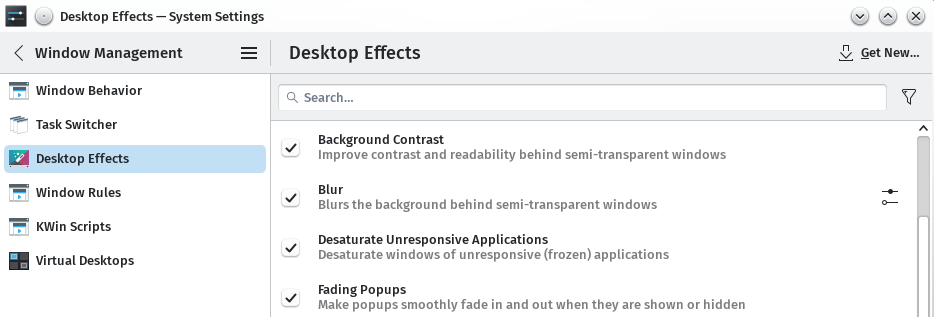
You'll also want to make sure that "Background Contrast" is enabled for the Plasma desktop effects.
Custom touchpad gestures:
Assuming you've installed touchegg and touche, you can search for touche in the application launcher. Here's a video of me demonstrating each gesture which is assigned to a keyboard shortcut in Touche. Each keyboard shortcut is configured in the System Settings of the Plasma desktop and specified by name in the video.
Wrap up
With this setup, I've been able to work without much hindrance when switching between a mobile (laptop) and stationary (dock station) workflow. Unlike other desktop environment workflows, both the touchpad and mouse remain equally functional rather than one being prioritized over the other.
For example, the GNOME desktop prioritizes a pedestrian touchpad centric workflow where application windows are ideally maximized or vertically half tiled. Virtual desktops are accessible by gestures (mouse controls are hidden) which promotes sorting applications into virtual desktops rather than utilizing a dock bar (because it's also hidden) for managing tasks from a single desktop. Swiping around to locate open applications is a UX metaphor borrowed from mobile device interfaces which might feel familiar to ill-adapted users, but is impractical for productivity.
Ubuntu's implementation of the GNOME desktop attempts to alleviate this since people actually use their desktop, but the black bar spanning the top quickly becomes realized as a waste of vertical space that could have better served as a single dock rather than splitting apart the system tray and clock into its own thing. Canonical's previous Unity desktop at least expanded the functionality of the top bar into a global menu, but with this no longer being the case, why does it remain? The vertical dock bar is also not ideal since it's quick to fill up with pinned icons which will resort to scrolling and it's also out of reach on present day commonplace wide displays. I should also mention that a lot of applications these days are thankfully adopting vertical sidebars of their own, such as Firefox and its tabs which paired with vertical docks becomes too easy to accidentally overshoot and miss-click an icon in the dock bar sitting directly beside it!
The KDE Plasma desktop takes on a traditional productivity workflow similar to Windows. Albeit perfectly fine for a desktop, it's not the greatest on a laptop, but it's highly customizable and can be made to work for just about any scenario. The trick is getting something that works well for both a laptop and a desktop without skimping on one or the other nor wasting vertical space.
With the guide above, it should be possible while also achieving a few accessibility goals:
- A highly accessible dock bar containing all of the most frequently used applications without having to click a "Start" menu button or an application finder / launcher. Everything should just be there without any hoops to jump thru.
- A purposeful top panel bar for the desktop pager, clock, and system tray while also integrating an application menu bar and window controls for vertical space management of maximized applications.
- Clearly defined and accessible title bars and window borders for manipulating floating application windows. Toolbar buttons and tabs don't belong in the title bar!
- Touchpad gestures for accomplishing the most basic of window management and virtual desktop navigation. The application overview isn't necessary thanks to the dock bar, but it's a nice touch!
All of this is only ideal for display resolutions of 1920x1080 and above. For smaller displays, a vertical dock bar might be advantageous then, but I would suggest a workflow similar to XFCE by this point.
It would be really neat if an option for the global menu bar could dynamically activate when a supported application window becomes maximized while un-maximized floating windows could retain their own separate menu bars. This would alleviate having to reach for the menu bar on ultra wide display setups with floating / tiled windows, but ultra wide setups aren't always ideal, so it's not really worth attempting to address in my opinion. From my experience switching between both a laptop workflow and a desktop workflow on the same device, I often find myself maximizing the application windows when working from the laptop, but when I dock my laptop to a larger external display I tend to float and tile the windows while not needing the vertical space as much. I could just switch between different profiles, but I'd rather have something that was consistent in both scenarios.
Try it out and let me know what you think.
Thanks for reading my blog!
[Back to top]
Comments: