 Blog
Blog Links
Links Contact
 About
AboutHow to install deno JS runtime for yt-dlp
Publish Date: 2026-01-01
Screenshot of JavaScript source code.
Are you seeing console errors for a missing JavaScript runtime when running yt-dlp?
WARNING: [youtube] No supported JavaScript runtime could be found. YouTube extraction without a JS runtime has been deprecated, and some formats may be missing.
In this brief guide, I'm going to show you how to resolve this by installing the Deno JS runtime for yt-dlp. Oh and also, this guide assumes you're on a Linux-based operating systems. If you're on macOS or Windows, this probably won't be of much help to you.
Support for Deno is enabled by default in yt-dlp, provided it's present on your user environment PATH. Depending on how you've installed yt-dlp, this can either be an easy thing or perhaps a bit difficult.
This guide will assume that you've installed yt-dlp in a conventional manner. The best place for yt-dlp to be installed in is ~/.local/bin with the Unix/Linux executable. However, I have known some people to utilize the Python package manager PIP for installation too.
If you've installed yt-dlp thru PIP, then make sure it's installed with the default dependency group since it includes the yt-dlp-ejs package. The yt-dlp project highlights this in their wiki by the way.
pip install -U "yt-dlp[default]"
For those of you using the Linux executable provided directly from the GitHub release page, you don't have to bother with it since the necessary JavaScript components are already included (except deno.)
If you've installed yt-dlp in a non-conventional manner such as a containerized environment, then this guide probably won't be much help for you and I'm not going to bother delving into troubleshooting that layer of complication.
Installing deno
If you're on a modern version of Ubuntu with the SNAP package manager, you could install Deno from there which does work without any complication or special setup from my experience. - (UPDATE: The SNAP package for Deno was removed and no longer works.) But if you don't like the SNAP package management system nor use Ubuntu, then you'll need to download the Deno installer. You can do so from the Deno website: https://docs.deno.com/runtime/getting_started/installation/
I recommend downloading just the shell script installer, which is the first option for the Linux platform. There are other options for Nix, Cargo, and Docker, but you're looking for a hassle with those. Just use the shell script installer.
Once it's downloaded, make the installer executable:
chmod +x install.sh
Run it as your normal non-sudo non-root user:
./install.sh
It'll download some additional dependencies, then create a ".deno" directory in your user home. In my opinion, it's not the best place for dumping software, but it works and I do appreciate that it's all contained to that specific directory for easy removal.
Deno should become present in the user PATH after closing and re-opening the terminal. You might have to log out and back in too. You can test this with the following command:
                  which deno


                  /home/user/.deno/bin/deno
The path is included in your ~/.profile on the bottom:
. "/home/user/.deno/env"
On occasion you'll want to update the deno runtime which you can do from the terminal with the following command:
deno upgrade
I'll usually invoke this command around the same time I run yt-dlp -U when updating yt-dlp. Yt-dlp will automatically pickup deno and the warning messages for a JavaScript runtime should go away. If you still see the warning messages for a JavaScript runtime, then it means yt-dlp doesn't see deno, meaning deno is likely not on the user environment PATH.
It's unfortunate that a full blown JS runtime is even needed, but it's also understandable too seeing how overly-complicated the web is getting just to re-implement very simple things that were solved ages ago. It seems this rando internet prediction in the following image from 2020 came somewhat true after all...
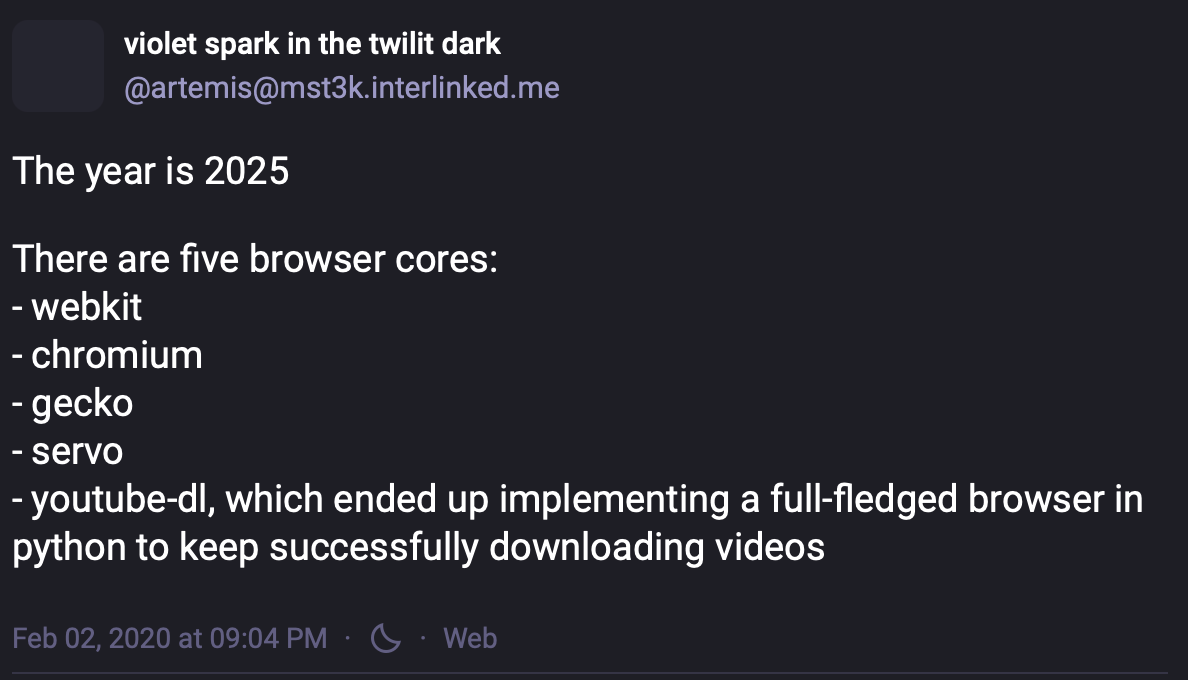
Anyhow, this should be all you need to install the deno runtime for yt-dlp. I hope it helps.
Thanks for reading my blog!
[Back to top]
Comments: